Scan your paperwork
Take a picture of a vet bill, Coggins, registration paper, or receipt, and let HorseBook read it and fill in the record for you.
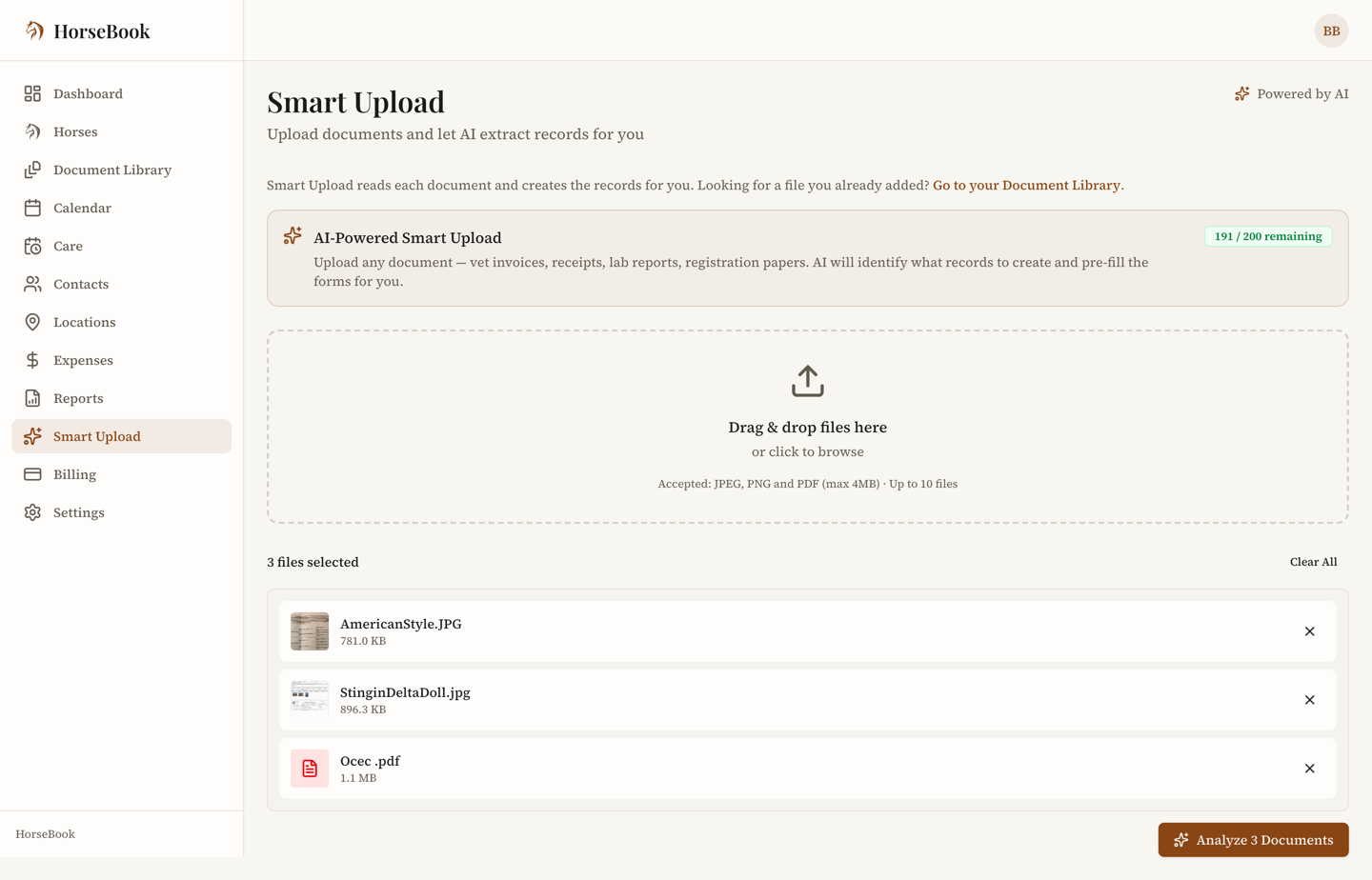
The fastest way to get anything into HorseBook is to photograph it. Point your phone at a document — or upload a file on the web — and HorseBook reads it, figures out what kind of paper it is, pulls out the important bits, and shows you a filled-in record to check before it saves. You're reviewing and confirming, not typing.
What it can read
HorseBook recognizes the paperwork horse people actually deal with:
- Coggins tests (EIA) — lab, test date, result, accession number
- Registration papers — name, breed, registration number, sire and dam
- Health certificates (CVIs) — vet, travel dates, origin and destination
- Vaccine and other medical records — type, date given, next-due date
- Vet and farrier receipts — vendor, amount, date, line items → an expense
- Genetic test results — panel and findings
A Coggins certificate often carries both the horse's identity and a medical result — HorseBook can pull both from the one page. And if it hands you a document it doesn't have a special template for, it still saves the file and grabs what it can, so nothing gets lost.
How to scan
The iPhone leans on the camera. Open the scanner, and it finds the edges of the page and captures automatically — hold the paper flat in good light and it does the rest. You can also pull an existing photo from your library. It reads the document, then drops you on a review screen.
On the web, use the Smart Upload hub. Drag in — or click to pick — your files (photos or PDFs, up to ten at a time). HorseBook reads each one and lays out the results for you to review.
Same brain behind both: whichever way the document comes in, it runs through the same reader and creates the same records. The camera-versus-upload difference is just about where you are — barn or desk.
Review, then confirm
This is the step that matters, so it's built into every scan.
- 1
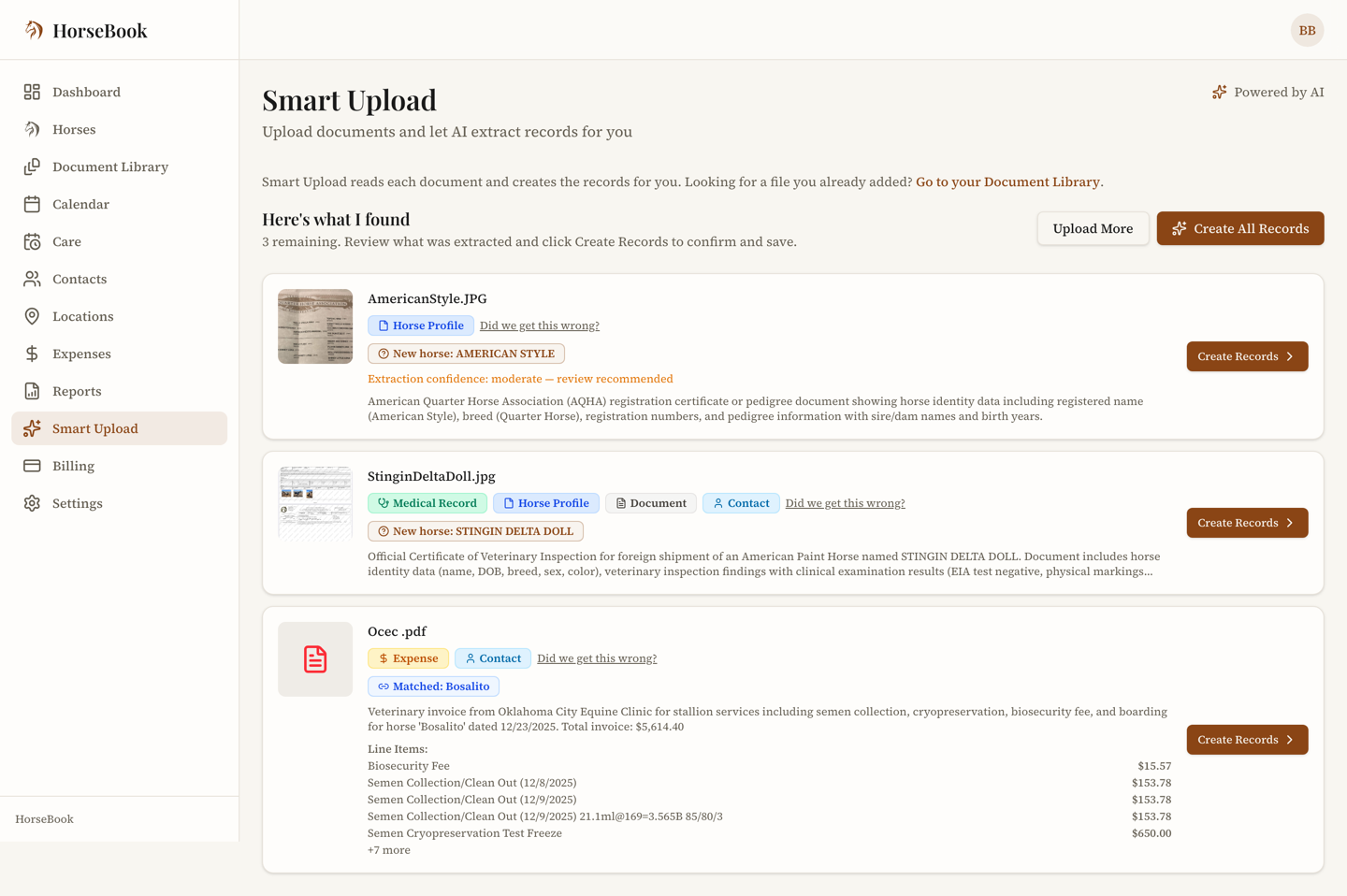
HorseBook shows you what it found — the record type and every field it filled in, with the document image alongside so you can compare.
- 2
Check the fields it flags as important: test results, dates and expiration dates, dollar amounts, registration numbers. Reading is very good on clean, printed documents, but a smudged fax is a smudged fax — glance before you trust.
- 3
Fix anything that's off, link it to the right horse (HorseBook suggests a match by name — see below), and confirm. Now it's a real record on that horse, with the original image attached.
Matching to the right horse
When a scan looks like it belongs to a horse you already have, HorseBook suggests the match by registered name and asks you to confirm — it won't silently merge two horses. If it's a registration paper for a horse that's new to your barn, it offers to create the horse from what it read. Either way you get the last word.
Scans by plan
Reading a document uses one scan from your monthly allowance. It's a shared count across the upload hub and the phone camera:
- Free trial — 20 scans/month
- Hobby — 20 scans/month
- Pro — 200 scans/month
- Business — 1,000 scans/month
Typing records in by hand is always unlimited on every plan — the scan count only applies to the AI reader. See Billing & plans for the rest.
Needs a connection
Reading a document happens on our server, so scanning needs internet — on either platform. Once a record's saved, you can view it offline.